
AI Studio
Generate campaign content with AI.
AI Studio generates campaign content with AI, across images, posters, and videos.
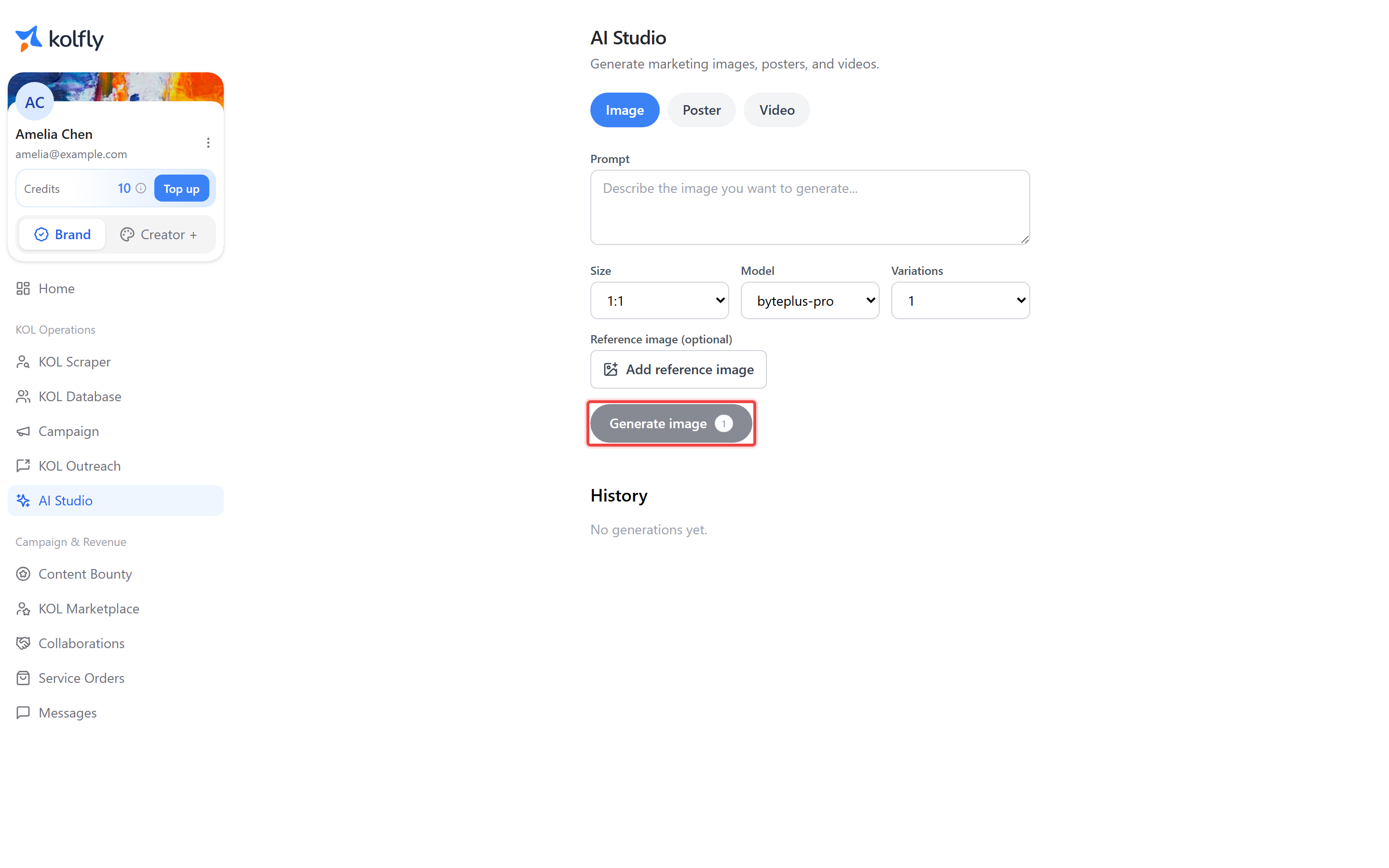
Finding it
Open AI Studio from the sidebar; the item appears only when AI Studio is enabled for your workspace.
How it works
AI Studio has three tabs: Image, Poster, and Video, each with its own form and its own generate button. Each generation runs as a job with a status of PENDING, PROCESSING, COMPLETED, or FAILED, rather than returning a result instantly. A History grid below the form lists your past jobs; click any of them to open it. Completed jobs display the generated image or video directly.
Credit costs on each generate button are fetched live from the server, so the number reflects current pricing rather than a fixed value. If pricing cannot be loaded, Kolfly falls back to base costs of 1 credit for images, 1 credit for posters, and 5 credits for video.
Generating an image
- Open the Image tab.
- Enter a Prompt describing the image you want.
- Select a Size: 1:1, 4:5, 9:16, or 16:9.
- Select a Model from the list of choices.
- Set Variations, from 1 to 4, to generate more than one option in one job.
- Optionally upload a Reference image in jpeg, png, or webp format, up to 8 MB.
- Click Generate image.
Generating a poster
- Open the Poster tab.
- Enter Product image URL and Logo URL.
- Enter Title and Descriptions, one line per description.
- Enter Text style, Layout, and Background as free text.
- Select a Ratio: 1:1, 4:3, 9:16, or 16:9.
- Click Generate poster.
Generating a video
- Open the Video tab.
- Enter a Prompt describing the video you want.
- Select a Ratio: 16:9, 9:16, or 1:1.
- Select a Model from the list of choices.
- Set Variations, from 1 to 4.
- Optionally upload a Reference image in jpeg, png, or webp format, up to 8 MB.
- Click Generate video.
Reviewing past jobs
- Scroll to the History grid below the generation form.
- Click any past job to open it.
- On a completed job, view the generated image or video inline.
- Check the job's status if it has not finished: PENDING, PROCESSING, COMPLETED, or FAILED.
Credit cost
Image generation costs the image base cost multiplied by Variations, plus the reference image's cost when one is attached. Poster generation costs the poster base cost. Video generation costs the video base cost multiplied by Variations, plus the reference image's cost when one is attached. The exact base costs are fetched live from the server; if unavailable, Kolfly uses fallback values of 1 credit for images, 1 credit for posters, and 5 credits for video.
Limits
Reference image uploads accept jpeg, png, and webp files up to 8 MB. Variations is limited to a range of 1 to 4.
Troubleshooting
Job status shows FAILED: the generation did not complete. Adjust your inputs and generate again.
Job stuck at PENDING or PROCESSING: the job is still queued or running; check back or open it from the History grid once it updates.
Reference image upload rejected: confirm the file is jpeg, png, or webp and no larger than 8 MB. Other formats or larger files are not accepted.
AI Studio missing from the sidebar: AI Studio is not enabled for your workspace.
Cost badge looks different than expected: the number on each generate button reflects live pricing from the server, so it can change between visits. It only falls back to the fixed base costs if live pricing cannot be loaded.