
Campaign
Get AI-ranked creator recommendations for a brief.
Campaign is Kolfly's KOL recommendation feature: you describe a brief, and Kolfly ranks creators from your KOL Database against it.
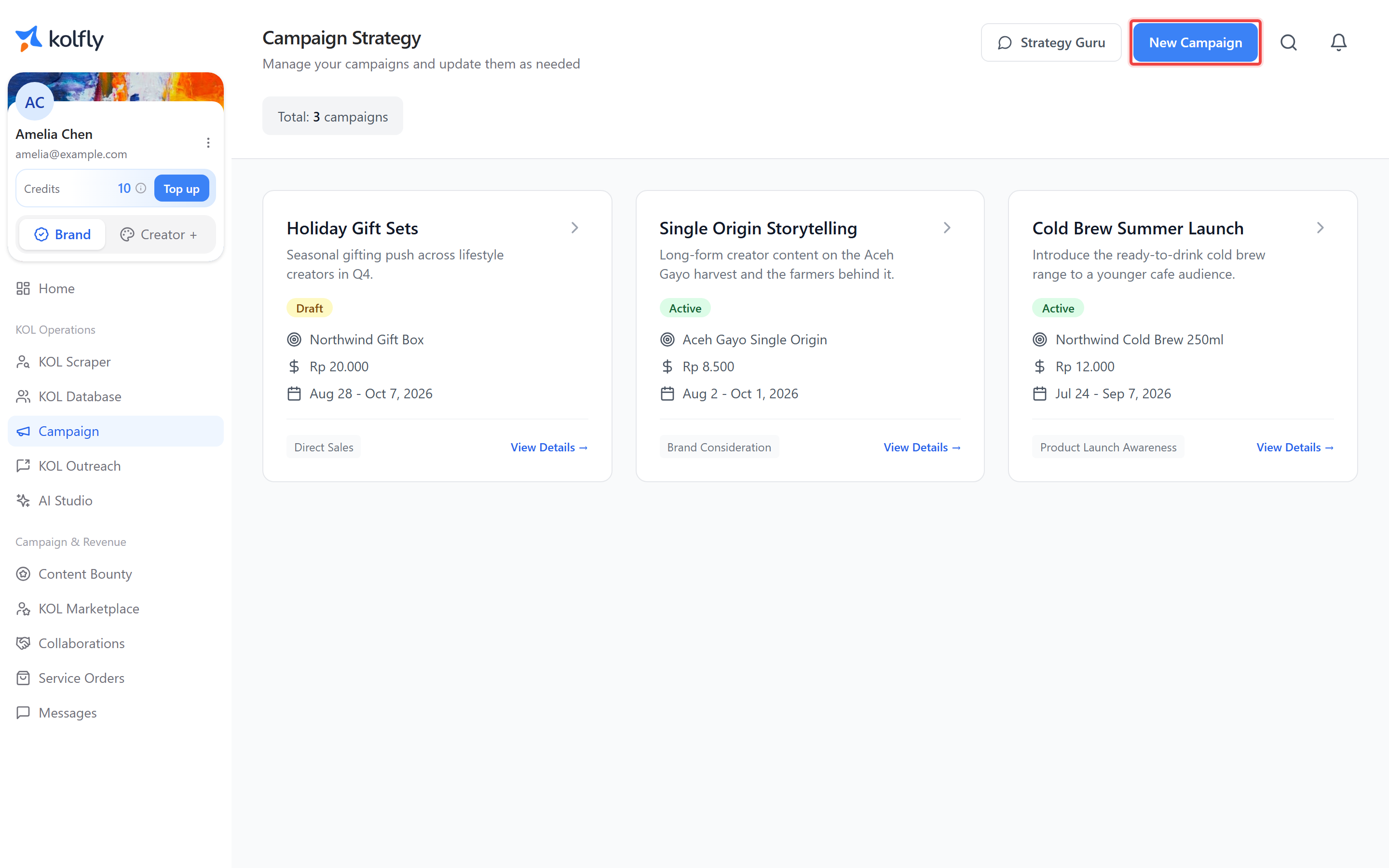
Finding it
Open Campaign from the sidebar.
How it works
The campaign list page shows a card per campaign with a status badge (Active, Draft, or Archived), the product, budget, date range, and objective, plus a View Details link. Two buttons sit above the list: Strategy Guru, which toggles an AI chat sidebar, and New Campaign.
Each campaign's detail page has an info card summarizing the brief, an "AI Campaign Overview" block once one exists, a "Reference documents" panel, and a Recommended KOLs section. The recommendation engine reads your campaign brief and ranks creators already stored in your KOL Database against it.
The Recommended KOLs section tracks its own status: Queued while it waits to run, Generating... while it works, Failed if it does not complete, or Interrupted if it stops early.
Creating a campaign
- From the campaign list, click New Campaign.
- Enter Campaign Name, at least 3 characters.
- Enter Product, the product or service the campaign is for.
- Select Objective: Brand Awareness, Brand Safety, Conversion, Lead Generation, Revenue Generation, or Traffic.
- Enter Budget: choose a currency, IDR or USD, then enter the amount.
- Set Starts and End dates to define the campaign's date range.
- Enter Description, at least 10 characters, describing the brief.
- Click Create Campaign to save it.
Campaign Name, Product, Objective, Budget, Starts, End, and Description are all required fields.
Generating KOL recommendations
- Open the campaign's detail page.
- In the Recommended KOLs section, click Generate Recommendations. This button, and its 20-credit cost badge, only appears before any recommendations exist.
- Wait while the status shows Queued, then Generating....
- Review the resulting cards, each showing a rank, the creator's name, a match percentage, and a summary of why the creator was matched.
- Switch between grid and list view using the toggle in the same section.
Once recommendations exist, Generate Recommendations is replaced by Regenerate. Click Regenerate to refresh results for the same brief instead of creating a new campaign.
Comparing and restoring past recommendations
Every time you generate or regenerate, Kolfly keeps the previous result as a snapshot, so you can look back at earlier recommendation runs.
- In the Recommended KOLs section, click History.
- Browse the list of past recommendation snapshots.
- Pick a base version and a compare version.
- Click Compare versions to view the differences between them.
- Click Restore on a snapshot to bring it back as the current recommendation set.
Using Strategy Guru
Strategy Guru is an AI chat assistant that can draw on your uploaded reference documents when answering questions about a campaign.
- Click Strategy Guru to open the AI chat sidebar.
- On a campaign's detail page, upload files to the "Reference documents" panel. It accepts PDF, Word, .txt, and .md files.
- Ask questions in the chat sidebar; Strategy Guru's answers take the uploaded reference documents into account.
Credit cost
Clicking Generate Recommendations costs 20 credits, shown as a cost badge on the button. Regenerate re-runs the same generation process against your current brief and KOL Database, but Kolfly does not display a cost badge on it.
Troubleshooting
Recommendation status shows Failed: generation did not complete. Click Try Again to retry.
Recommendation status shows Interrupted: generation stopped before finishing.
Generate Recommendations missing: recommendations already exist for this campaign; use Regenerate instead of trying to generate again from scratch.
Strategy Guru answers ignore an uploaded file: confirm the file was uploaded to the "Reference documents" panel on the campaign's detail page in one of the accepted formats: PDF, Word, .txt, or .md.