
Content Bounty
Publish an open brief and reward creators for submissions.
Content Bounty lets you publish an open brief with a budget so creators post short-form content on their own TikTok or Instagram accounts, and you pay them based on the views those posts earn. This is different from Campaign, which recommends creators from your own KOL database — Content Bounty is open to any creator who chooses to join.
Finding it
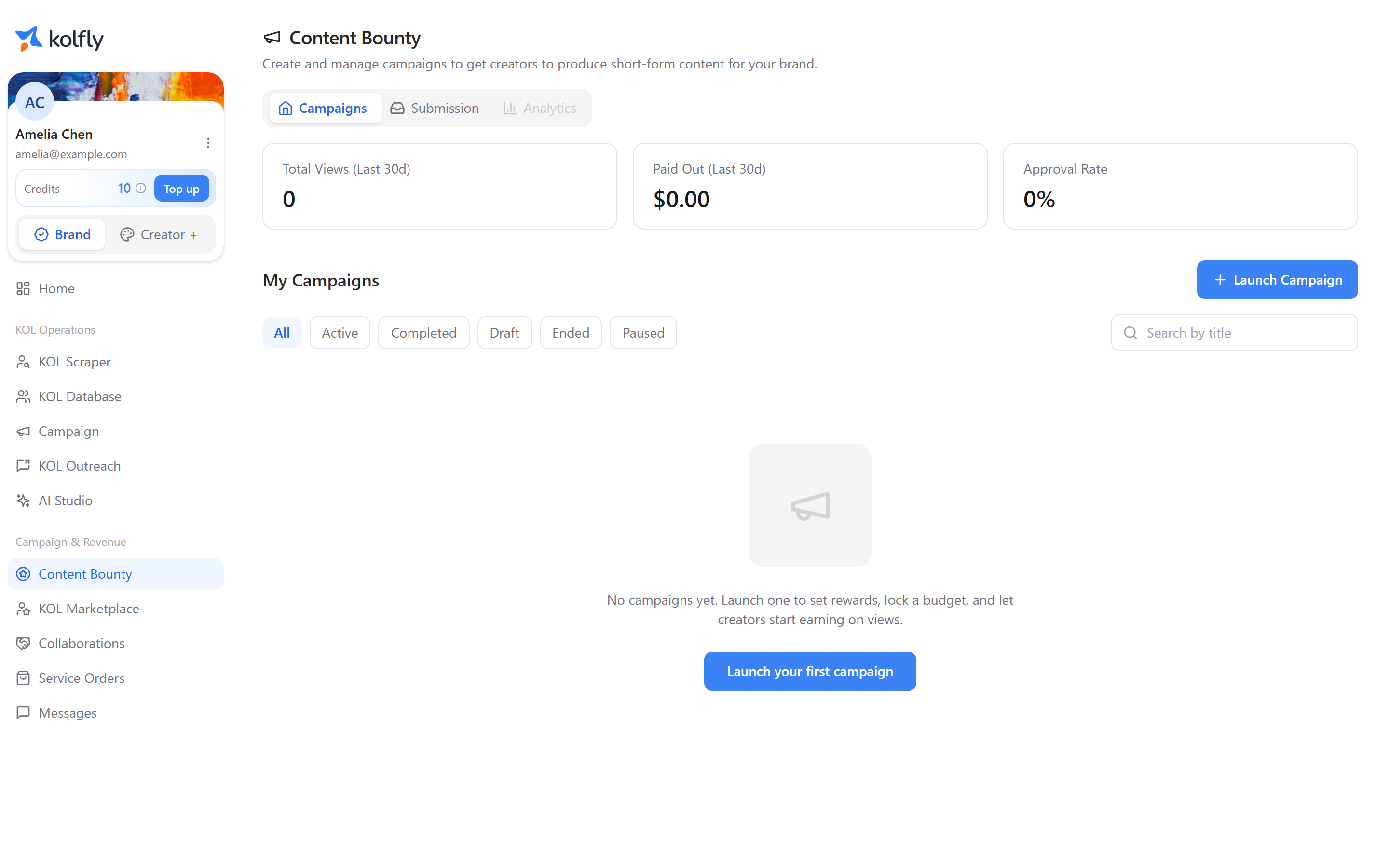
Open Content Bounty from the sidebar. The page has three tabs.
- Campaigns lists the campaigns you have created.
- Submission lists creator submissions awaiting your review, with a badge showing the pending count.
- Analytics is disabled and not yet available.
Three stat cards sit above the tabs: Total Views (Last 30d), Paid Out (Last 30d), and Approval Rate.
Filtering campaigns
On the Campaigns tab, use the status pills to narrow the list: All, Active, Completed, Draft, Ended, and Paused. Use the Search by title box to find a campaign by name.
If you have no campaigns yet, the tab shows an empty state with a Launch your first campaign button.
Launching a campaign
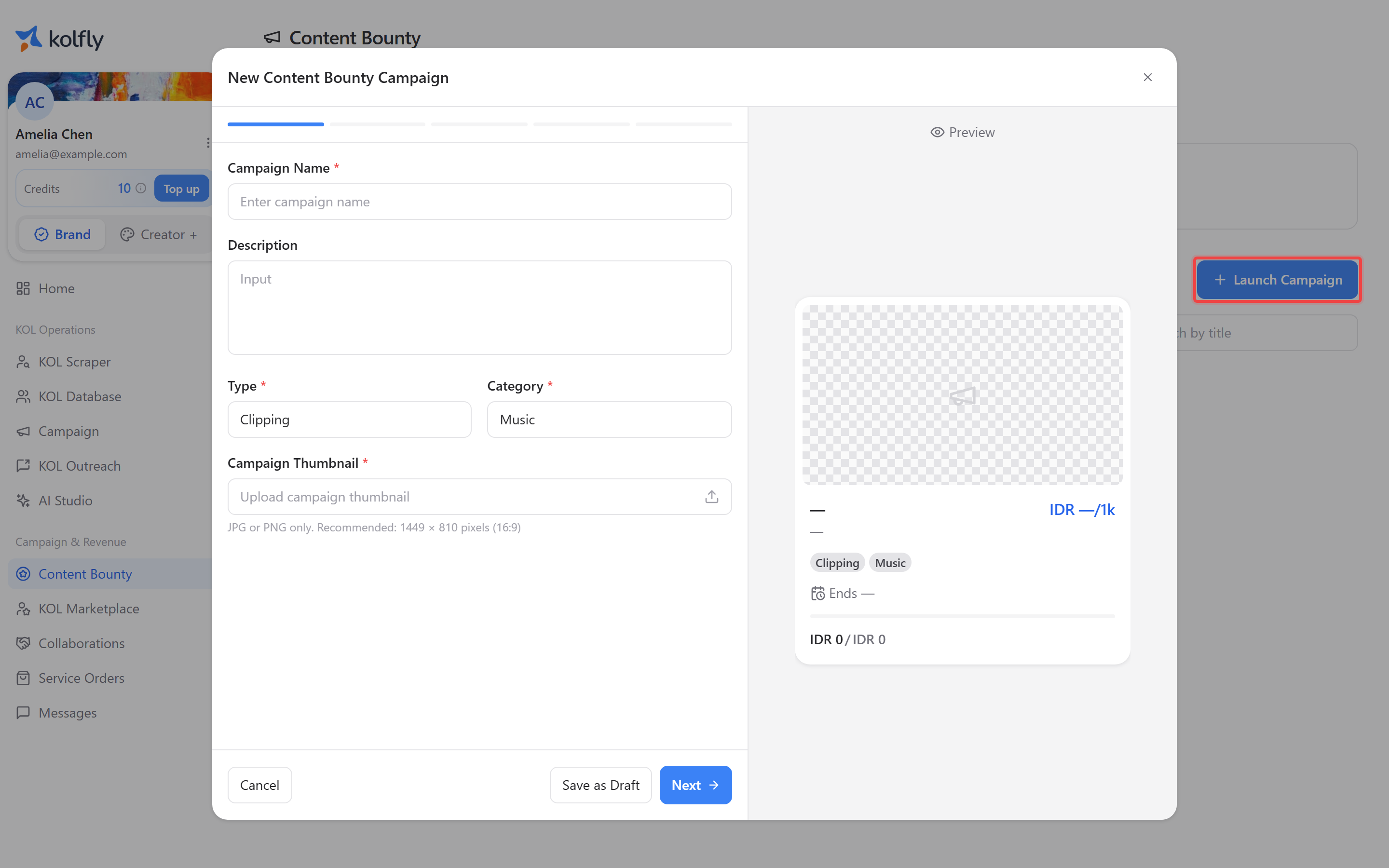
- Click Launch Campaign, or Launch your first campaign from the empty state.
- Complete the five wizard steps described below.
- Select Save as Draft at any step to stop and finish later, or complete all five steps and click Create Campaign.
Step 1: Basics
- Campaign Name (required).
- Description.
- Type: Clipping, UGC, or Both.
- Category: Music, Beauty, Fashion, Fitness, Food & Beverage, Technology, Gaming, Travel, Lifestyle, Wellness, Finance, Education, Parenting, Entertainment, Home & Living, or Automotive.
- Campaign Thumbnail (required): JPG or PNG only, max 5 MB, recommended size 1449×810 pixels.
Step 2: Rewards
- Budget (required): currency and amount.
- Reward per 1,000 views (required).
- Minimum Payout and Maximum Payout (both required). Each field shows an approximate view count calculated from your reward rate.
Step 3: Schedule
- Platforms: TikTok and Instagram are the two supported platforms.
- Schedule Campaign toggle: "Campaign will start on a scheduled date, turn off to launch campaign immediately." Turning it on reveals Campaign Starts.
- No End Date toggle: "Campaign stays active until your budget is fully spent." Turn it off to set Campaign Ends.
Step 4: Requirements
- Content Requirements (required): a free-text list you can reorder.
- Content Links: reference links for creators, each with a Content Label, a Content URL, and a URL type — Google Drive, YouTube, External Link, TikTok, Instagram, X, Google Doc, Twitch, Vimeo, or Other.
- Preset requirement toggles: Require face on camera, Require tag (expands to add handles), Require brand logo/watermark, No reposted/recycled content, and Specific sound/music (expands to a TikTok music URL field).
Step 5: Funding
This step shows the Campaign budget and two funding options.
- Pay from balance: disabled when your balance is too low, showing "Not enough {currency} balance, top up first in Usage & Billing, or pay directly."
- Pay directly: opens a payment tab.
The wizard includes this note: "The full budget is locked while the campaign runs and can't be spent elsewhere. Unused budget returns to your balance after the campaign is finalized or cancelled."
After funding, you see a Campaign Created or Campaign Scheduled confirmation with a See Campaign Page button.
Managing an active campaign
A campaign moves through these statuses.
| Status | Meaning |
|---|---|
| DRAFT | Saved but not launched. |
| ACTIVE | Running and accepting submissions. |
| PAUSED | Temporarily stopped. |
| ENDED | Reached its end date or ran out of budget. |
| FINALIZING | Final payouts are being calculated. |
| FINALIZED | Payouts are final; unused budget is released to your balance. |
| CANCELLED | Stopped by you before completion. |
The action available from the campaign dashboard depends on the current status.
| Status | Available action |
|---|---|
| DRAFT | Edit or Cancel |
| ACTIVE | Pause or Cancel |
| PAUSED | Resume or Cancel |
Reviewing submissions
- Open the Submission tab.
- Find a submission with status PENDING_REVIEW.
- Click to approve it, or reject it and type a reason. The creator sees any reason you enter.
A submission moves from PENDING_REVIEW to either APPROVED or REJECTED.
Tracking creator participation
Each campaign's dashboard lists the creators who joined, with a participation status per creator.
| Status | Meaning |
|---|---|
| JOINED | Creator joined the campaign. |
| SUBMITTED | Creator submitted content. |
| PENDING_REVIEW | Submission is awaiting your review. |
| APPROVED | Submission was approved. |
| REJECTED | Submission was rejected. |
| SYNCING_VIEWS | View counts are being refreshed. |
| ELIGIBLE | Submission qualifies for payout. |
| FINALIZED | Payout amount is locked in. |
| PAID | Creator has been paid. |
Reading the campaign dashboard
The dashboard tracks budget with these metrics: Reserved budget, Estimated spent, Finalized spent, Remaining budget, and Released to balance. It tracks performance with Target views, Verified views, and Latest synced views.
Each submission shows an estimated payout that moves as views re-sync. Once the campaign is finalized, the estimate switches to a final allocated amount.
Analytics
The Analytics tab is disabled and not yet available.
Cost
Content Bounty does not use credits and has no plan requirement. You pay only the campaign budget you set in Step 5 of the wizard.
Troubleshooting
Pay from balance is disabled: your balance is below the campaign budget. Top up in Usage & Billing, or choose Pay directly.
A campaign has no Pause or Resume option: those actions only appear for campaigns in ACTIVE or PAUSED status. A DRAFT campaign offers Edit instead.
A submission's payout amount keeps changing: this is expected before the campaign is finalized — the estimate moves as Kolfly re-syncs view counts. It becomes final once the campaign reaches FINALIZED.
Analytics tab does nothing when clicked: it is disabled and not yet available.