
KOL Outreach
Contact creators and track your conversations.
KOL Outreach tracks every conversation you have with a creator, from first contact through to a completed collaboration.
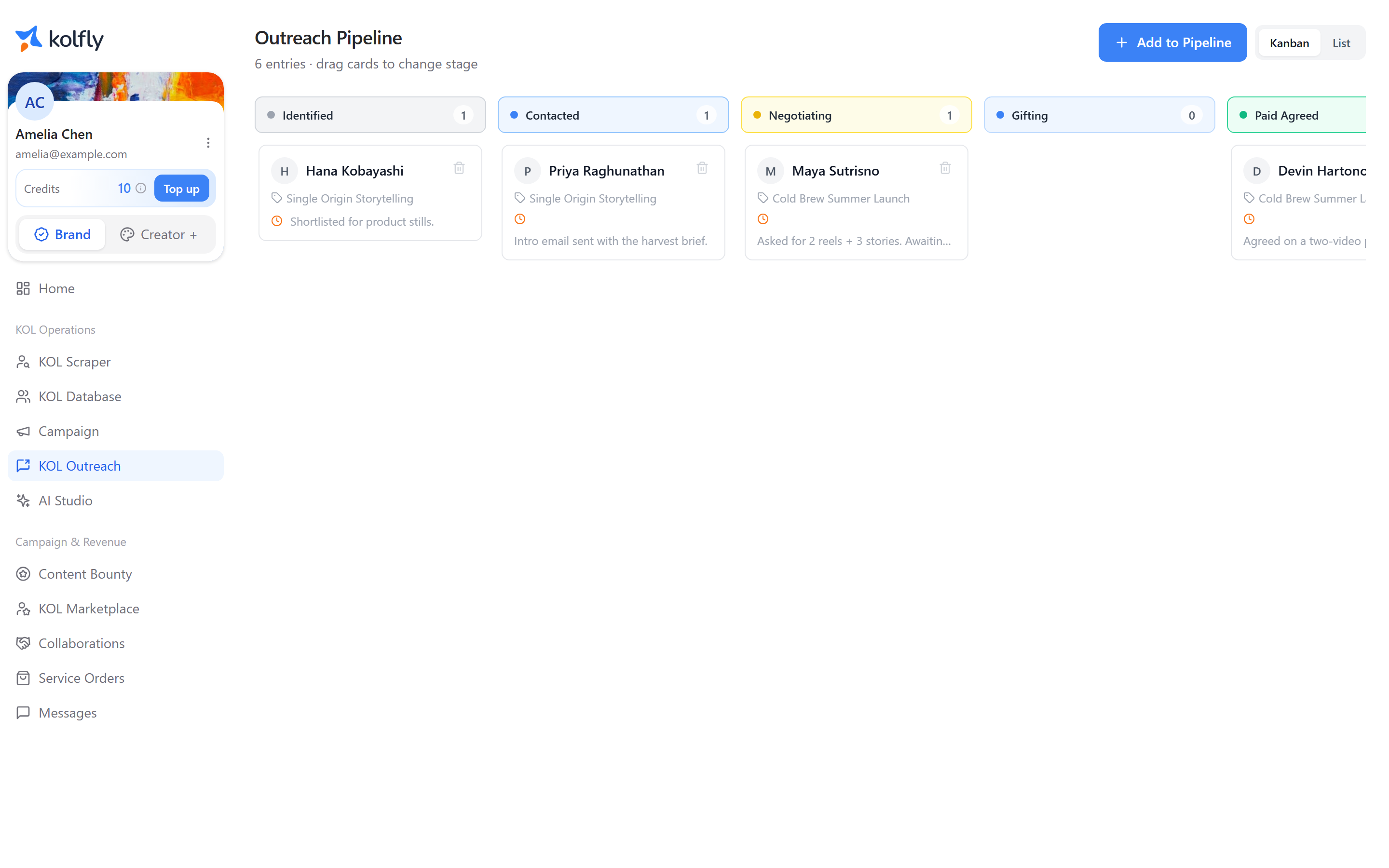
Finding it
Open KOL Outreach from the sidebar; the item appears only when outreach is enabled for your workspace.
How it works
The Outreach Pipeline header shows a running count of cards and the hint "drag cards to change stage." Switch between Kanban and List views with the view toggle; Kanban lays cards out in columns by stage, while List shows them as rows.
Every card sits in one of 14 stages, covering the full path from first contact to a finished collaboration: Identified, Contacted, Responded, Negotiating, Gifting, Gift Sent, Gift Received, Content Review, Paid Proposal, Paid Agreed, In Progress, Completed, Declined, Unresponsive.
The board always shows six default columns — Identified, Contacted, Negotiating, Gifting, In Progress, Completed — plus any other stage column that currently has cards. Stages without cards stay hidden unless they are one of the six defaults, which keeps the board from being cluttered with empty columns.
Adding a KOL to the pipeline
- Click Add to Pipeline. This opens an inline create form rather than a separate page.
- Select a KOL from the typeahead, limited to creators already in your KOL Database. Creators that are not yet in your KOL Database do not appear.
- Optionally select a Campaign. This field is disabled until you choose a KOL, and any campaign the KOL is already assigned to is disabled in the list so you cannot add a duplicate pipeline entry for the same pairing.
- Set an Initial Stage to place the card in one of the 14 stages.
- Optionally add Notes about the conversation so far.
- Optionally set Last Contacted and Next Follow-up dates and times using the date-time pickers.
- Optionally fill in Gift Details and Tracking Number if you are sending a gift or product.
- Optionally enter a Paid Amount and its currency, IDR or USD, if the collaboration is paid.
- Submit the form to add the card to the pipeline.
Moving a KOL through stages
- In Kanban view, drag a card from its current column to the target stage's column.
- Alternatively, open the card and use the stage dropdown in the detail drawer; the change applies immediately.
- If the target stage has no existing column on the board, moving a card into it creates that column.
Reviewing and editing a pipeline entry
- Click a card to open its detail drawer.
- Review the stage dropdown, notes, Last Contacted and Next Follow-up dates, the "Gift / Product Seeding" section, and the "Paid Partnership" section.
- Change the stage directly from the dropdown; the update applies immediately without a separate save step.
- Click edit to modify notes, dates, the "Gift / Product Seeding" section, or the "Paid Partnership" section.
- Click save to commit changes, or delete to remove the entry.
- Check the read-only Timeline for created and updated timestamps.
- Click close to return to the pipeline.
Troubleshooting
Campaign field disabled when adding a KOL: select a KOL first; the field activates once one is chosen. Campaigns the KOL is already assigned to remain disabled.
KOL not found in the Add to Pipeline form: only creators already imported into your KOL Database appear in the typeahead. Add the creator to your KOL Database first.
KOL Outreach missing from the sidebar: outreach is not enabled for your workspace.
Stage change does not seem to save: changes made from the drawer's stage dropdown apply immediately and do not need a separate save step; other field edits do require clicking save.