
Carousel Studio
Generate multi-slide carousel posts.
Carousel Studio builds multi-slide carousel posts for LinkedIn and Instagram, styled with templates and your creator identity, then exported as image files. Open Carousel Studio from the sidebar; the item appears only when AI Writer Studio is enabled for your workspace.
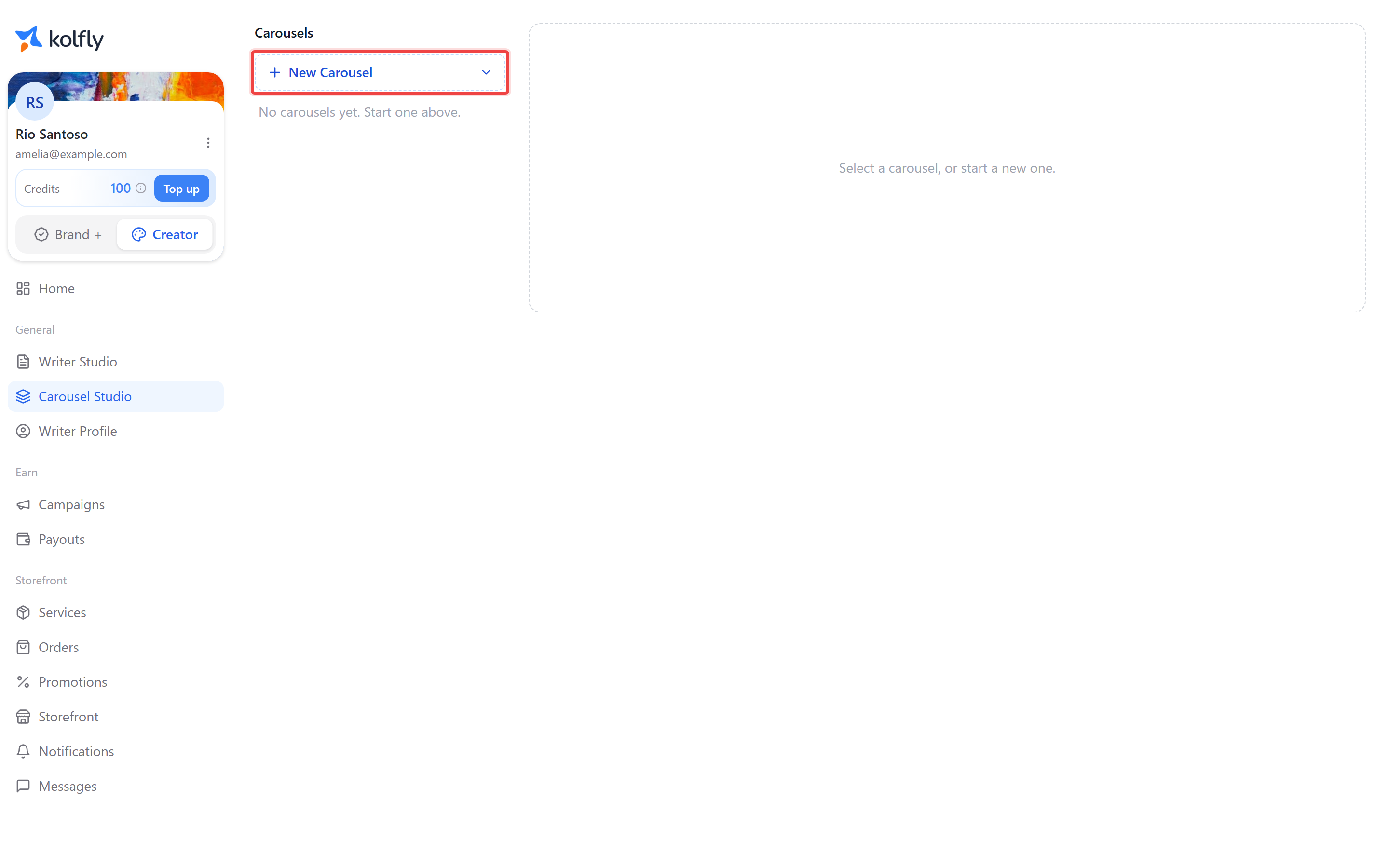
Finding it
Carousel Studio uses a two-column layout. The left column lists your Carousels. The right column shows the canvas editor for whichever carousel you select.
Starting a carousel
- Click New Carousel.
- Choose a platform: LinkedIn or Instagram.
- Choose a ratio. LinkedIn offers 4:5 and 1:1; Instagram offers 3:4 and 1:1.
The new carousel opens in the canvas editor. Each carousel in the list shows its ratio and a status of Draft or Ready.
The canvas editor
The editor has a control rail on the left and the canvas stage on the right:
- A filmstrip across the top shows every slide as a thumbnail. Click a thumbnail to select that slide.
- A large preview below the filmstrip shows the selected slide.
- Heading and Body text fields below the preview edit the selected slide.
Use the arrow buttons above the fields to move the selected slide earlier or later. Add a slide with the + button at the end of the filmstrip. Remove a slide by hovering its thumbnail and clicking the trash icon.
Generating a carousel with AI
- In the Generate with AI panel, describe your topic.
- Click Generate carousel.
- Review the generated slides listed in the panel.
- Click Apply to replace your current slides, or Discard to keep what you had.
Applying replaces all current slides with the generated ones.
Choosing a template
Under Template, click any template swatch to apply it. Only templates for the carousel's platform are shown.
Palette and effect
Open the Palette & effect section to set:
- Palette: Default, Contrast, Warm, or Cool.
- Effect: None, Gradient overlay, or Duotone.
- Effect intensity: Low, Medium, or High (only active when an effect is set).
Creator identity
Open the Creator identity section to control the avatar, name, and CTA footer shown on your slides:
- Toggle Show on carousel on or off.
- If your creator profile is incomplete, fill in Display name, a photo, and a Tagline, then click Save profile.
- Set CTA text, up to 30 characters (for example, "Swipe →").
- Set Show on: Every slide or First & last slide only.
The identity shown always reflects your current creator profile, not a snapshot from when the carousel was created.
Background
Open the Background section to Upload a custom background image (PNG, JPEG, or WebP, up to 8 MB), or Remove an uploaded one.
Exporting a carousel
Use the PNG or PDF buttons above the editor:
- PNG downloads a single .zip file containing one PNG per slide.
- PDF downloads a single PDF with one page per slide, sized to match each slide's export dimensions.
If any slide's text was cut off during export, a warning toast tells you to shorten it and export again. Exporting does not change the carousel's saved content and does not use credits.
Saving
Carousels autosave as you edit. The status next to the export buttons shows Saving… or Saved.
Deleting a carousel
Hover a carousel in the list and click the trash icon. A brief Undo option appears afterward. Deleted carousels stay recoverable server-side for 30 days even after the on-screen Undo disappears.
Credit cost
| Action | Button | Cost |
|---|---|---|
| Generate a carousel | Generate carousel | 20 credits |
Limits
- Up to 10 slides per carousel.
- Slide heading: up to 80 characters.
- Slide body: up to 400 characters.
- CTA text: up to 30 characters.
- Background upload: PNG, JPEG, or WebP, up to 8 MB.
Troubleshooting
No slides yet: click Add first slide, or generate a carousel with AI.
Export button stuck on "Exporting…": exporting times out automatically after 30 seconds and shows an error; try exporting again.