
Workspaces and team
Organise brands, invite teammates, and manage roles.
A workspace holds a brand's KOL database, campaigns, members, and billing. All Brand mode work happens inside a workspace, and every teammate you invite joins that same workspace with a defined role.
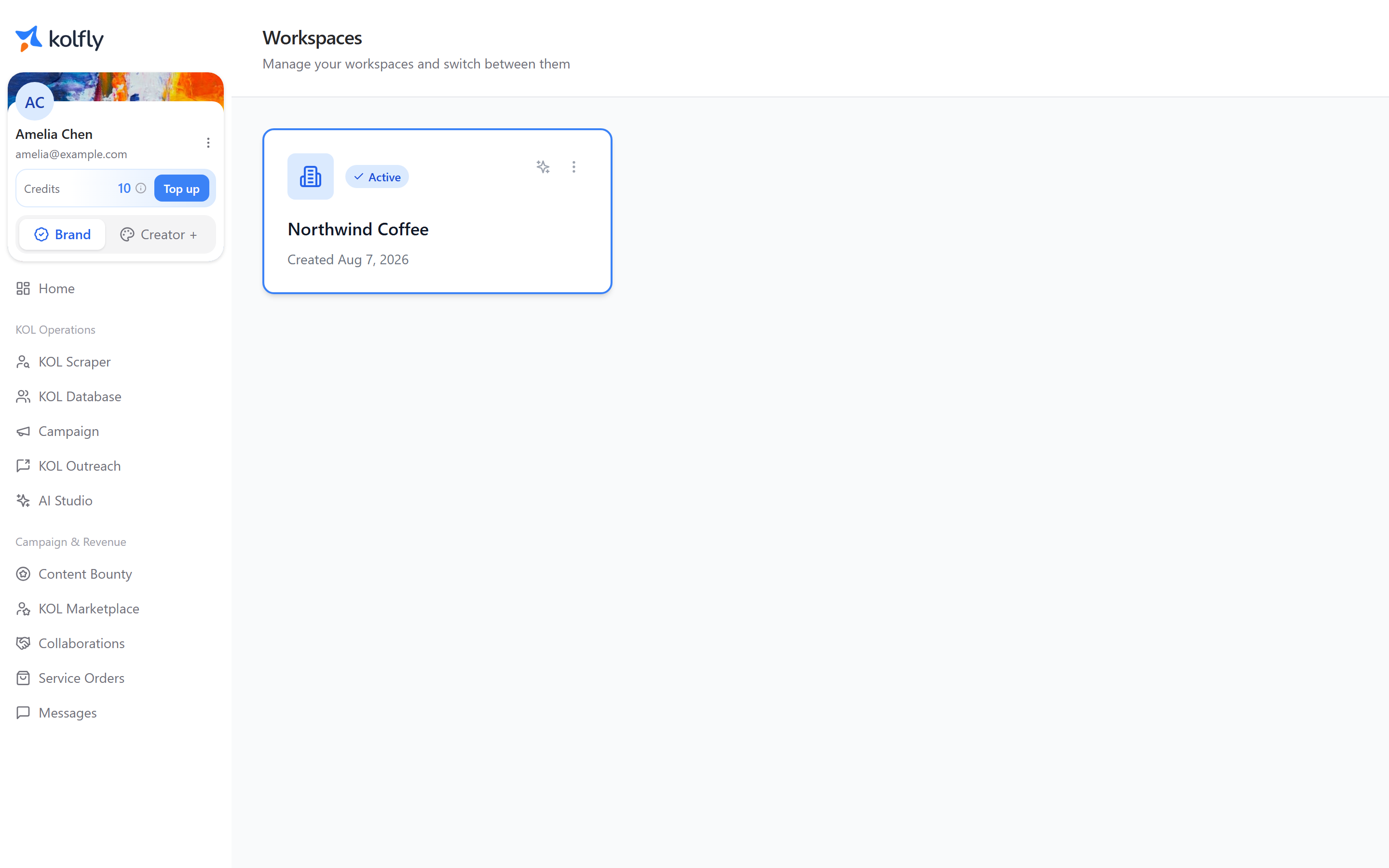
What lives in a workspace
Everything your team does in Brand mode belongs to one workspace: the creators you save, the campaigns you run, the people who can act on that data, and the plan you are billed on.
Inviting a teammate gives them access to all of it, at the level their role allows.
Roles
Kolfly has three roles.
| Can they… | Owner | Admin | Member |
|---|---|---|---|
| Use the workspace day to day | Yes | Yes | Yes |
| Invite new members | Yes | Yes | No |
| See pending invitations | Yes | No | No |
| Remove a Member | Yes | Yes | No |
| Remove an Admin | Yes | No | No |
| Change someone's role | Yes | No | No |
| Change the subscription plan | Yes | Yes | No |
An Owner cannot be removed or have their role changed from within the workspace.
Reserve Admin for people who run billing or grow the team. Use Member for everyone else.
Inviting a teammate
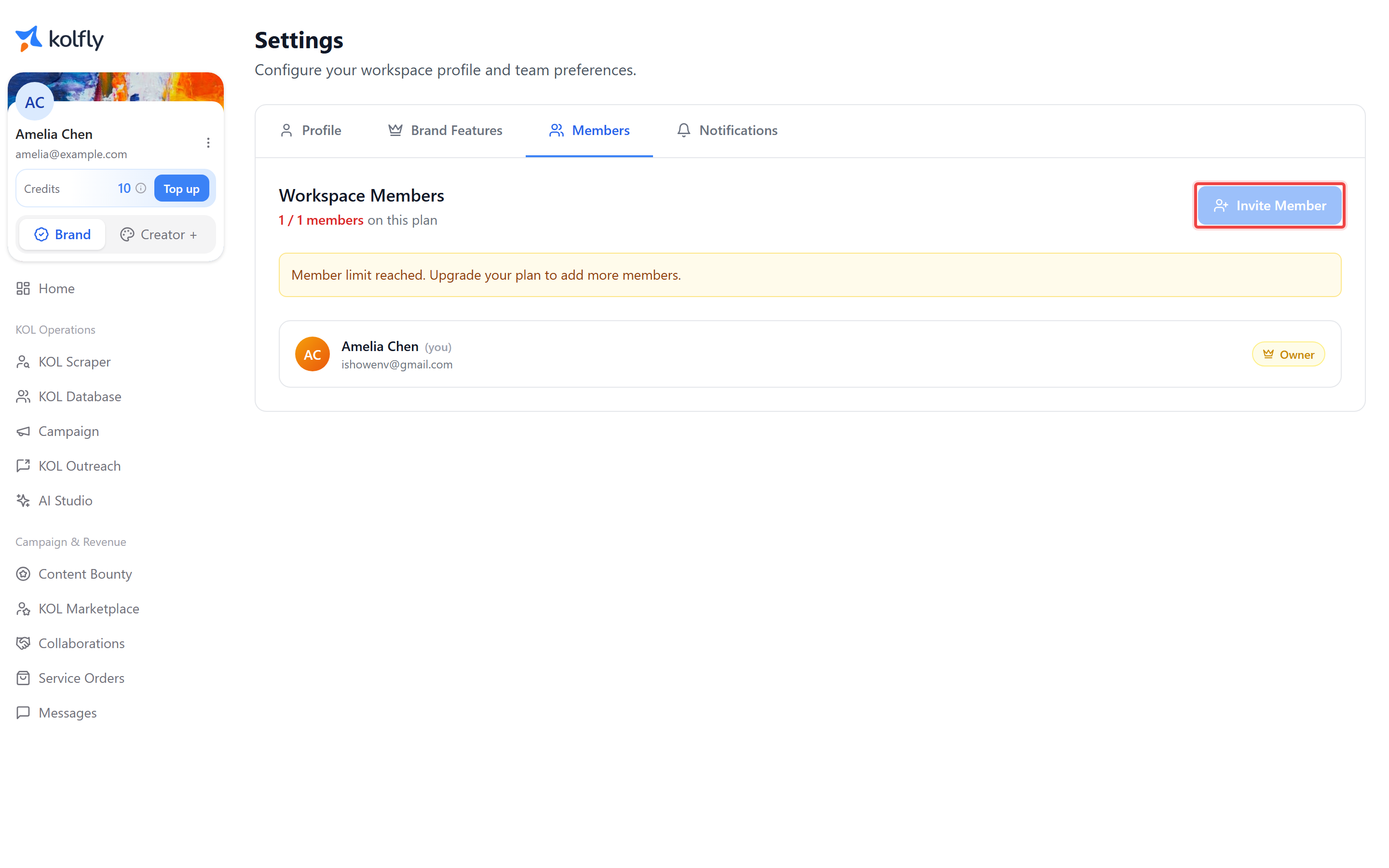 Open the Members settings tab →
- Select Invite Member.
- Enter the teammate's Email (required).
- Choose a Role: Member ("Standard access") or Admin ("Manage members & settings").
- Select Generate Invite.
Kolfly then gives you a copyable invite link and shows its expiry date. Share that link with your teammate so they can join the workspace. Because the invite carries the role you selected, double-check the role before generating the link — you will need an Owner to change it afterward.
Seeing who's pending
Owners can see pending invitations, which lets you track who has been sent a link but has not yet joined the workspace. This is useful for confirming whether a teammate has not clicked their link yet before generating a second invite for them.
When you can't invite more members
Invite Member is disabled once the workspace reaches its member limit. The tooltip reads "Member limit reached. Upgrade your plan to invite more."
Limits come from your plan, so raising one means upgrading.
| Plan | Members | Workspaces |
|---|---|---|
| Free Trial | 1 | 1 |
| Starter | 1 | 1 |
| Brand Pro | 5 | 1 |
| Agency | 15 | 5 |
| Enterprise | Custom | Custom |
See Plans and pricing for the full comparison.
Brand settings tabs
Brand workspace settings are organized into four tabs:
- Profile
- Brand Features
- Members
- Notifications
Use the Members tab to see the current member list, pending invitations, and to invite or remove people, subject to your role's permissions above.
Creator settings tabs
Creator mode does not use workspaces, so its settings are organized differently, around your individual account:
- Profile
- Social accounts
- Password
- Billing