
Brand and Creator modes
How the two modes differ and how to switch between them.
A single Kolfly account can hold both a Brand profile and a Creator profile. Each is set up through its own onboarding flow, and each shows a completely different sidebar and set of features. Understanding how the two modes relate helps you find the right tools and avoid confusion when the interface looks unfamiliar.
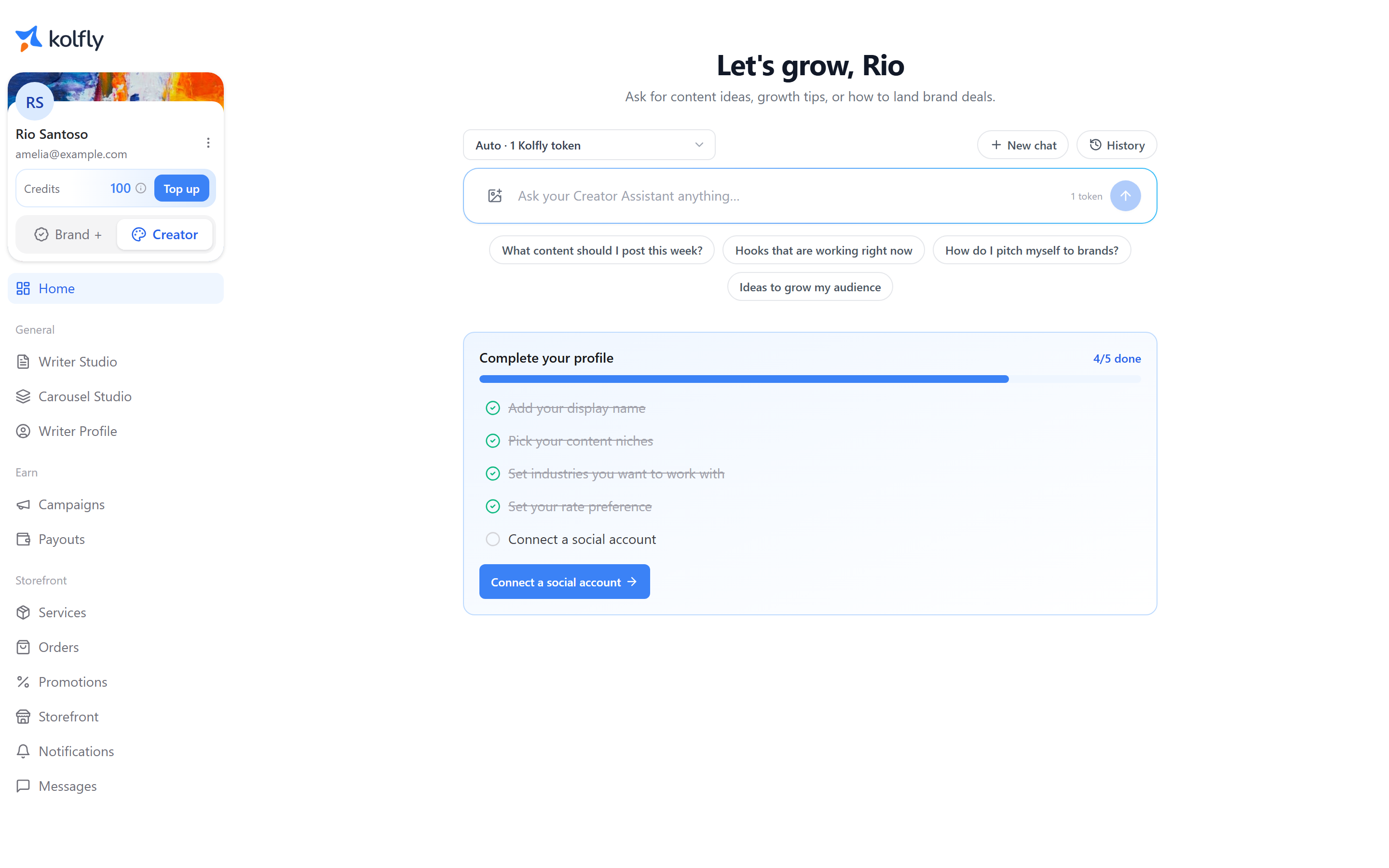
What each mode is for
Brand mode covers finding creators and running campaigns. It is where you search for KOLs, build out a database of creators, launch campaigns, and manage outreach and orders.
Creator mode covers building a profile, joining campaigns, and getting paid. It is where you present yourself to brands, connect your social accounts, submit content for campaigns, and track your earnings.
If you have only completed one onboarding flow, you only have that one mode, and the mode control only offers that single option plus the choice to add the other.
Switching between modes
Use the Brand / Creator control in the profile card at the bottom of the sidebar to switch modes. Selecting the mode you are not currently in takes you straight to that mode's home, provided you already have that profile.
If you have not set up the other profile yet, the control shows a plus sign next to it instead of switching you directly. Selecting it starts that profile's onboarding flow rather than switching you into an empty mode.
Adding a second profile later
You are not required to set up both profiles at sign-up. If you started as a Brand, you can add a Creator profile later, or the reverse, by selecting the plus-sign option in the mode control and completing that profile's onboarding flow. Once onboarding finishes, the mode control offers both Brand and Creator as switchable options.
How the mode setting is stored
Your selected mode is stored in your browser, so it is specific to that device. Switching to Creator mode on your laptop does not switch your phone to Creator mode — each device remembers its own last choice independently.
Where you land after signing in
What you see right after signing in depends on which profiles you have set up:
- If you only have a Creator profile, you go to the creator home.
- If you only have a Brand profile, you go to the brand home.
- If you have both, Kolfly uses your last choice on that device. If there is no prior choice recorded on that device, it defaults to Brand.
Shared elements in the sidebar
Regardless of which mode you are in, the sidebar shows a Credits figure with a Top up button, and a three-dot account menu containing account links and Logout. These stay in the same place whether you are working in Brand mode or Creator mode, so switching modes does not mean relearning where to find your credits balance or sign out.
Why the modes are kept separate
Kolfly keeps Brand and Creator as distinct modes because the two roles need different tools: a Brand is searching for and paying creators, while a Creator is presenting themselves and getting paid. Separating the sidebars keeps each mode focused on the actions relevant to that role, instead of mixing brand-facing and creator-facing controls into one interface. If your account has both profiles, you can move between the two whenever your work shifts from one role to the other, using the same mode control described above.