
Your creator profile
Set up the profile brands see and connect your accounts.
Your creator profile is what brands see when they search the marketplace. Keeping it complete and verified helps brands find you and lets you join campaigns.
Creator Home
Creator Home, at /creator, is the first screen you land on in Creator mode. It greets you by name and opens with a chat box for the Creator Assistant. The placeholder text reads "Ask your Creator Assistant anything…", and four suggestion chips sit below it: "What content should I post this week?", "Hooks that are working right now", "How do I pitch myself to brands?", and "Ideas to grow my audience". Select a chip, or type your own question, to start a conversation.
Below the chat sit two widgets. The Complete your profile widget tracks your setup progress and disappears once you reach 100%, so returning creators with a finished profile see a cleaner home screen. The Campaigns picked for you widget follows, showing campaigns Kolfly has matched to your profile; it stays hidden entirely when there are no matches yet, rather than showing an empty state.
Each suggested campaign card opens that campaign's detail page when selected. Select Browse all at any time to leave the curated picks and see the full campaign list instead.
Completing your profile checklist
The profile checklist has five items:
- Add your display name.
- Pick your content niches.
- Set industries you want to work with.
- Set your rate preference.
- Connect a social account.
Select any item to go to creator settings and complete it. Selecting the social account item opens the Social accounts tab directly.
Why completeness matters
Brands filter the marketplace by niche, follower tier, region, verification status, and rate range. An incomplete profile means fewer brands find you in their searches, since each unfilled field is a filter that could exclude you from results. Connecting and verifying a social account is also required before you can join most campaigns, so treat it as a priority rather than an optional step.
Creator settings
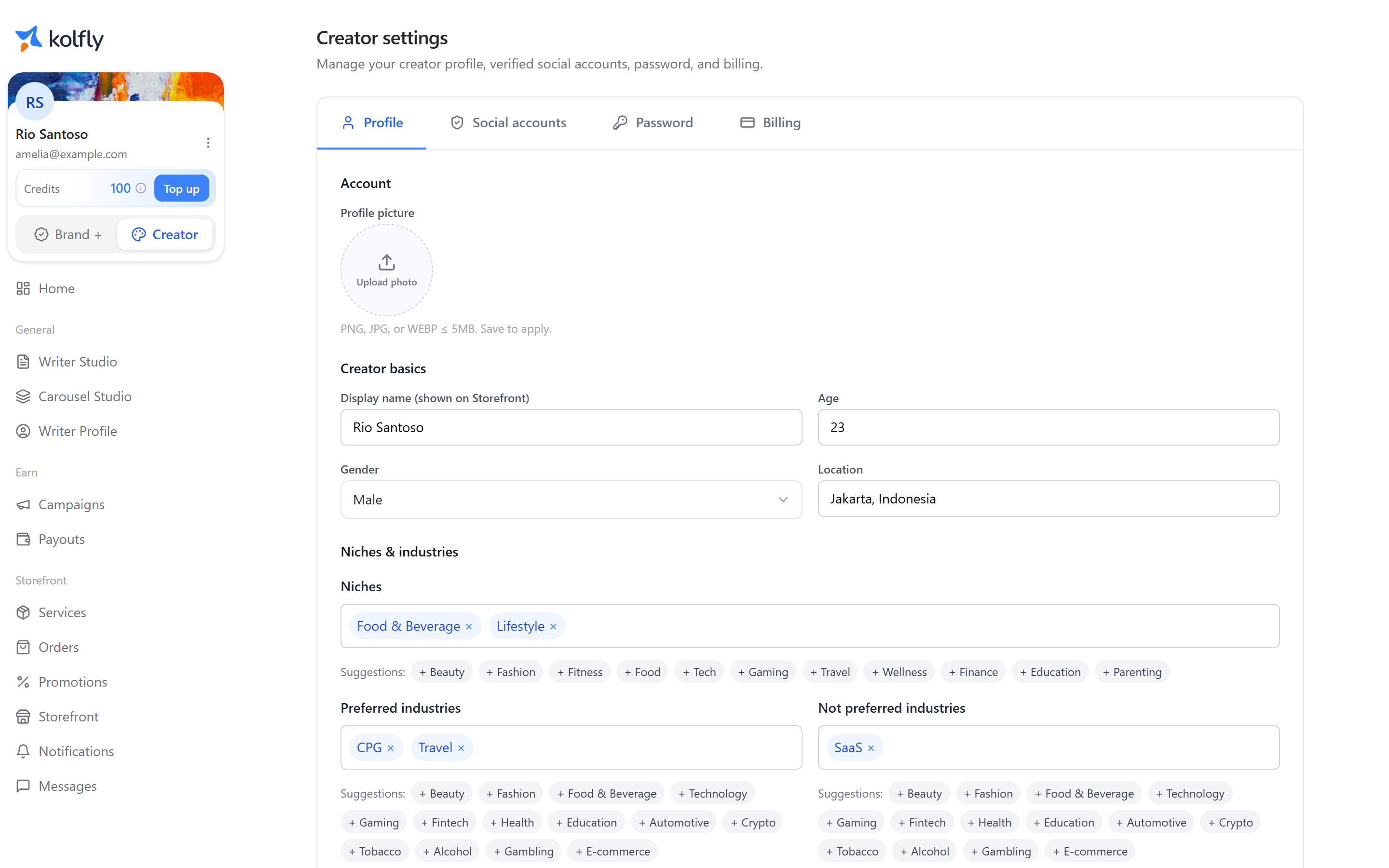
Creator settings has four tabs:
| Tab | What it covers |
|---|---|
| Profile | Your display name, niches, industries, and rate preference |
| Social accounts | Connecting and verifying your TikTok and Instagram accounts |
| Password | Your account password |
| Billing | Payment and billing details |
Connecting and verifying a social account
Verification uses a code-in-bio flow that runs during campaign joining. Kolfly gives you a short code, you place it in your account's bio, and Kolfly checks the bio to confirm you own the account. Once verified, that account stays verified, so you only need to complete this step once per account. Do this early, since most campaigns require a verified account before you can join.
Your sidebar
Your profile card at the bottom of the sidebar shows your credit balance and a Top up button for adding more credits. The same card holds the mode switcher, which lets you move between Brand and Creator mode if your account has both. Look here first if you're trying to find your balance or switch how the app looks.