
KOL Marketplace and Service Orders
Buy creator services directly and manage those orders.
KOL Marketplace, Collaborations, and Service orders work together when you book creator work directly, outside of Campaign and Content Bounty. Find a creator in the Marketplace, track the relationship in Collaborations, and see anything you booked under Service orders. Delivery conversations happen in Messages.
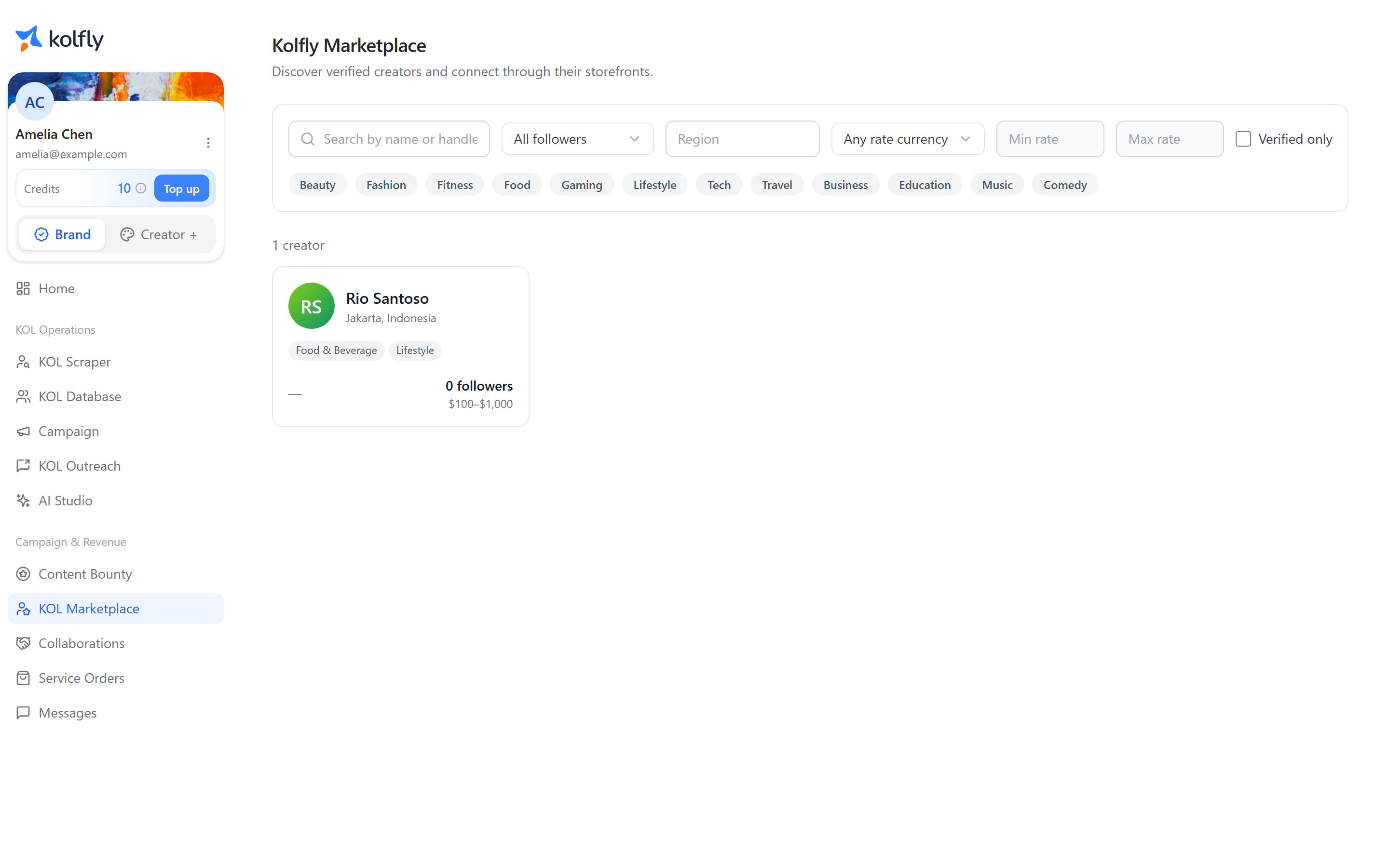
KOL Marketplace
Open Kolfly Marketplace — "Discover verified creators and connect through their storefronts."
Filtering creators
- Search by name or handle.
- A follower tier select: All followers, Nano (1K-10K), Micro (10K-100K), Mid (100K-500K), Macro (500K-1M), or Mega (1M+).
- A Region text input.
- A rate currency select — Any rate currency, USD, or IDR — paired with Min rate and Max rate.
- A Verified only checkbox.
- Niche pills: beauty, fashion, fitness, food, gaming, lifestyle, tech, travel, business, education, music, and comedy.
- A Clear all link to reset every filter.
Creator cards show an avatar, verified badge, niches, top platform, follower count, and rate range.
Starting a collaboration
- Click a creator card to open its drawer.
- Review the creator's stats, niches, and connected social accounts.
- Choose an action: Start collaboration, Message, or Open full storefront.
Start collaboration creates a collaboration record and shows "Collaboration started. View it," which links to Collaborations. The rate range shown is the creator's own stated preference. No money changes hands on this screen.
Collaborations
Open Collaborations — "Track every KOL partnership from first contact to completion."
Use the status pills to filter the list: All, Contacted, Negotiating, Contracted, In progress, Submitted, Approved, Completed, Disputed, and Cancelled.
Each row shows the creator, the date it was last updated with an optional note, a status badge, an inline dropdown to change the status, and a link to open the creator's storefront.
Updating a collaboration status
- Find the collaboration's row in the list.
- Open the inline status dropdown.
- Select the new status.
You can set any status directly from the dropdown — Kolfly does not enforce a linear order, so you can move a collaboration backward or skip stages as your conversation with the creator progresses.
Service orders
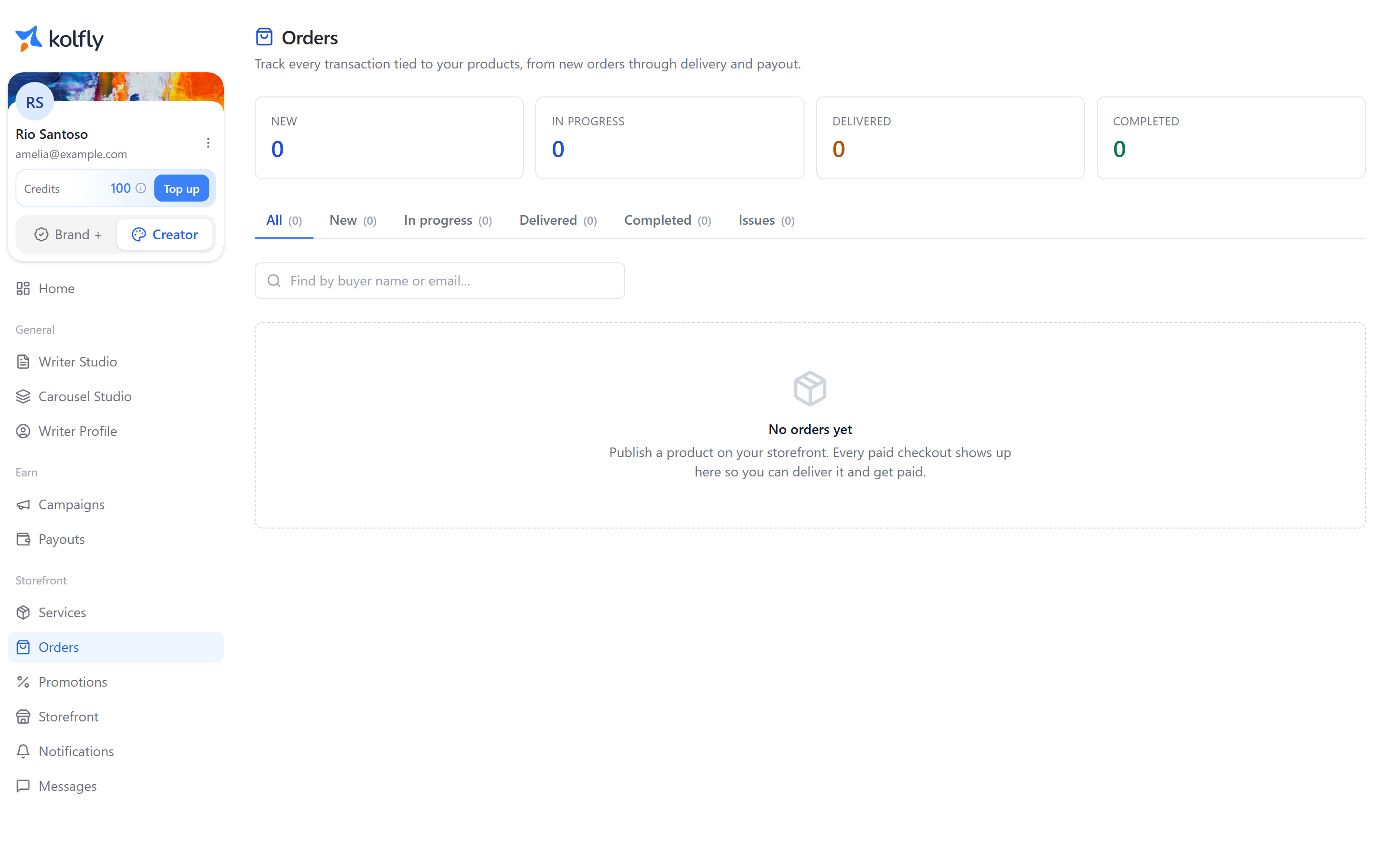
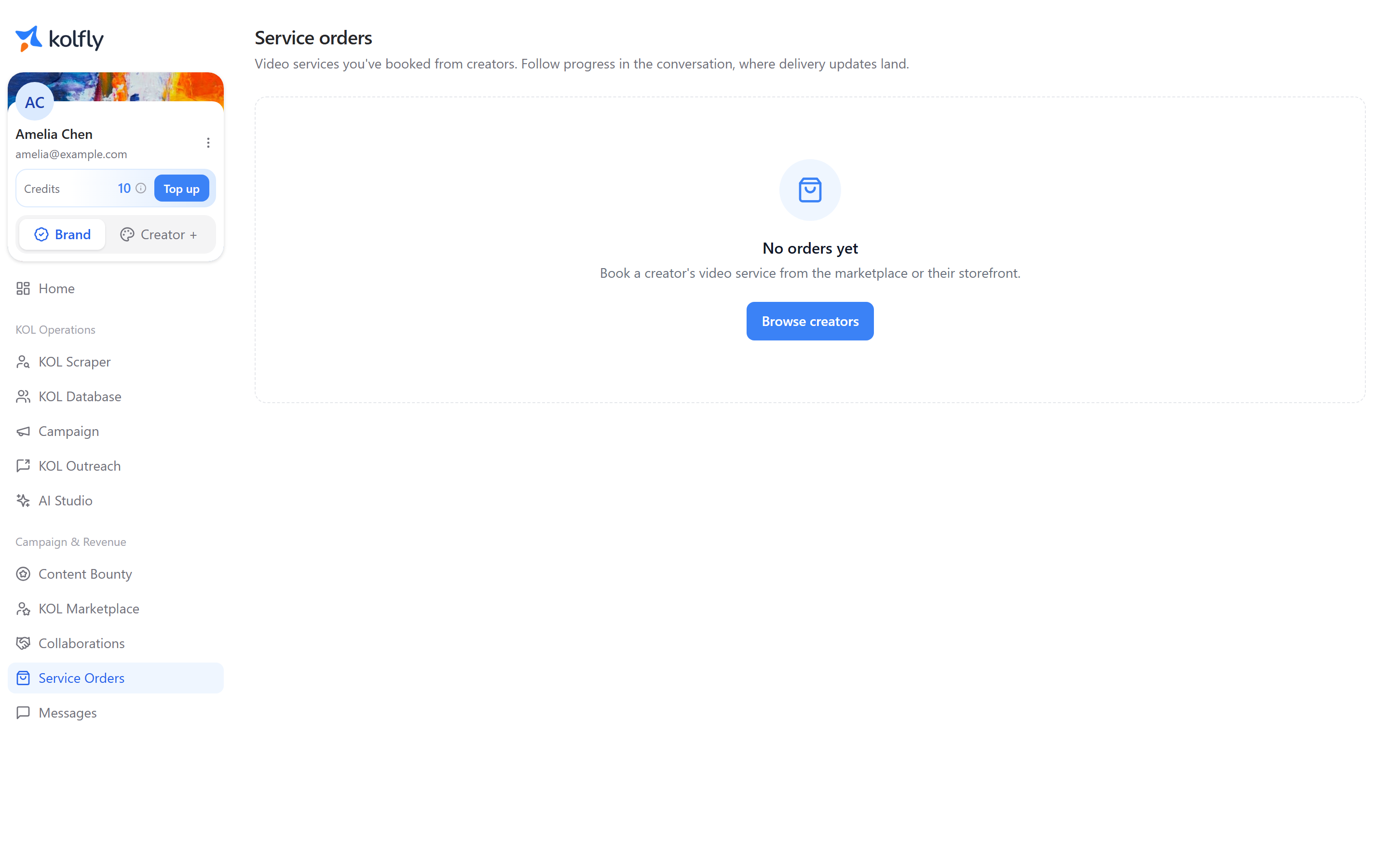
Open Service orders — "Video services you've booked from creators. Follow progress in the conversation, where delivery updates land."
The table lists each order's Service (with turnaround days), Creator, Total, Status, and Date, plus an Open conversation link. If you have no orders, the page shows "No orders yet" with a Browse creators button that takes you to the Marketplace.
An order carries one of these statuses.
| Status | Meaning |
|---|---|
| Awaiting payment | Order placed, payment not yet completed. |
| Paid | Payment received. |
| In progress | Creator is producing the content. |
| Delivered | Creator submitted the finished content. |
| Completed | You accepted the delivery. |
| Cancelled | Order was cancelled. |
| Revision requested | You asked the creator for changes. |
| Disputed | Order is under dispute. |
Following up on an order
This screen is read-only — you cannot change an order's status here. Delivery updates and status changes happen in the conversation thread.
- Find the order's row in the table.
- Click Open conversation.
- Review delivery updates and status changes as they land in the thread.
Messages
Open your inbox to see a three-pane layout: conversation list, thread, and context pane. Use Search messages… to find a conversation, and the Unread and Archived checkboxes to filter the list.
Within a thread, you can send messages, attach files, and edit your own message within 5 minutes of sending. Order lifecycle events — like a delivery or status change — appear in the thread as system notices. The context pane lists the conversation's participants and, for order threads, links to the order.
Sending brand messages requires an active workspace.
Cost
None of these screens use credits.
Troubleshooting
A collaboration's status won't move forward on its own: statuses only change when you set them from the inline dropdown; Kolfly does not advance them automatically.
No status change controls on Service orders: this screen is read-only by design. Open the conversation from the order's row to see or trigger updates.
Service orders page shows "No orders yet": you have not booked a service. Click Browse creators to open the Marketplace.
Can't send a workspace message: brand messages require an active workspace.